
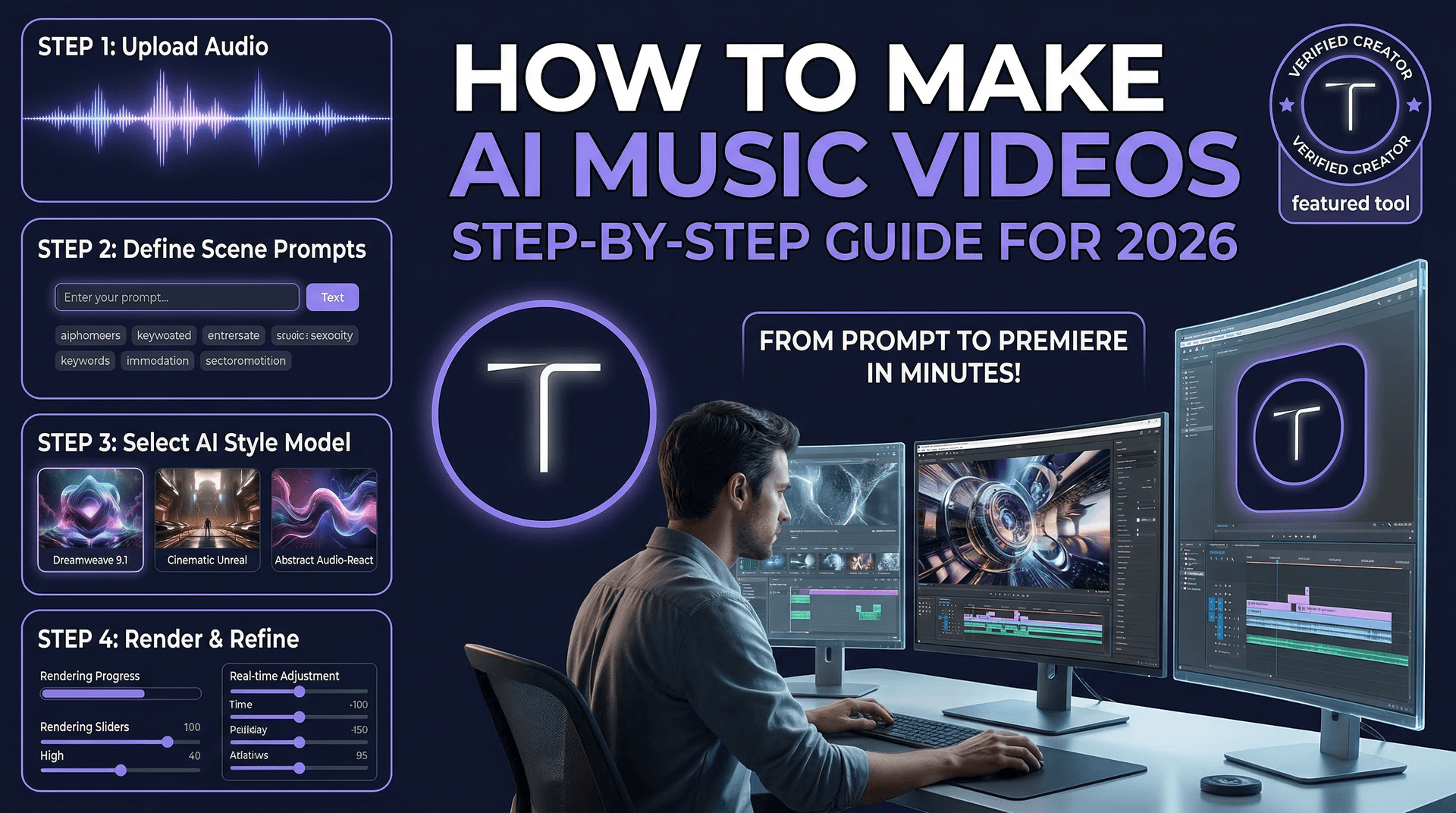
AI music videos are one of the most exciting creative frontiers in 2026. You can create a complete music video — from the song itself to the visuals — using nothing but AI tools and a laptop. Independent artists, content creators, and visual artists are using this approach to produce music videos that would have cost thousands just a year ago.
This guide walks you through the entire process, from generating or preparing your music track to creating stunning visuals and assembling the final video.
The AI music video workflow
The process has four stages: prepare the music, plan the visual concept, generate the video clips, and edit everything together. Each stage uses different AI tools, and the total time from start to finish is typically 2-6 hours depending on complexity — compared to days or weeks for traditional music video production.
Stage 1: Prepare your music
If you already have a track, skip ahead. If not, AI music generators can create original songs from text descriptions.
Suno is currently the leading AI music generator. Describe the genre, mood, tempo, and lyrical themes, and it generates a complete song with vocals, instruments, and production. The quality is impressive — many AI-generated songs are indistinguishable from indie productions.
For instrumental tracks (which are easier to pair with AI visuals), describe the mood and genre precisely: "Ambient electronic, slow tempo, atmospheric pads, subtle beat, dreamlike quality, 3 minutes." The more specific your description, the better the output.
Important: understand the licensing terms of whatever music tool you use. Most AI music generators grant commercial usage rights, but the terms vary.
Stage 2: Plan your visual concept
Before generating a single frame, storyboard your music video. This does not need to be elaborate — a simple list of scenes with timestamps is enough.
Break your song into sections (intro, verse 1, chorus, verse 2, bridge, outro) and decide what visual concept fits each part. Listen to the track and note where the energy changes, where beats drop, and where the mood shifts. Your visuals should mirror these transitions.
Common AI music video styles that work well: abstract visual journeys (flowing colors, particles, morphing landscapes), character-driven narratives (a figure moving through different environments), nature cinematics (landscapes matching the song's emotional arc), and urban atmosphere pieces (city scenes with mood lighting).
Stage 3: Generate your video clips
This is the core creative step. For each scene in your storyboard, write a detailed prompt and generate the video clip.
For cinematic landscape scenes, use Google Veo through Tona.AI. Veo excels at smooth camera movements and atmospheric B-roll. Prompt example: "Slow aerial flyover of a misty lake surrounded by mountains at sunrise. Camera drifts forward gently. Volumetric fog, warm golden light, reflections on still water."
For abstract and artistic visuals, Kling 3.0 handles color and motion beautifully. Prompt example: "Liquid gold paint flows across a dark surface in slow motion, splitting into fractal patterns. Close-up macro shot, dramatic studio lighting, satisfying fluid dynamics."
For scenes with people, use Kling 3.0's start frame feature. Generate a reference image of your character first using Nano Banana 2, then use it as the start frame to ensure visual consistency across multiple clips.
Generate 3-4 variations of each scene and keep the best. The success rate for AI video is typically 30-60% per generation, so plan for some re-rolls.
Stage 4: Edit and assemble
Import all your generated clips and your music track into a video editor. CapCut (free) or DaVinci Resolve (free) both work perfectly for this.
Cut your clips to match the song's structure. The most important timing points are the first beat drop, chorus entries, and the bridge. Sync visual transitions to musical transitions — a scene change on a beat hit feels intentional, while one between beats feels random.
Add color grading for consistency across clips. Different AI models produce slightly different color profiles, so a uniform color grade ties everything together. In DaVinci Resolve, the Color page lets you match clips precisely.
Finally, add text overlays for the song title and artist name, and render at the highest quality your platform supports. For YouTube, export at 4K if your source clips support it. For Instagram and TikTok, export at 1080x1920 (9:16).
Tips for better AI music videos
Match generation model to scene type. Use Veo for smooth tracking shots and atmospheric content. Use Kling for dynamic motion and character scenes. Switch between models scene by scene for the best overall quality.
Keep each clip short. 3-8 second clips cut to the beat feel more professional than long continuous shots. Fast cutting matches the energy of most music and hides imperfections in AI generation.
Use consistent color palette language in your prompts. If your music video has a teal-and-orange mood, include "teal and orange color grading" in every prompt. This makes color grading in post-production much easier.
Consider using AI-generated audio effects between scenes — whooshes, risers, and ambient sounds — to smooth transitions. Kling 3.0 and Veo both generate environmental audio that can supplement your music track.
Getting started
The fastest way to start is with Tona.AI, which gives you access to Kling 3.0, Google Veo, and Nano Banana 2 (for reference images) from a single platform. Generate your reference images, create your video clips across multiple models, and download everything for editing. Combined with a free music generator like Suno and a free editor like CapCut, you can produce your first complete AI music video for zero cost using the free tier credits.